 MentionBell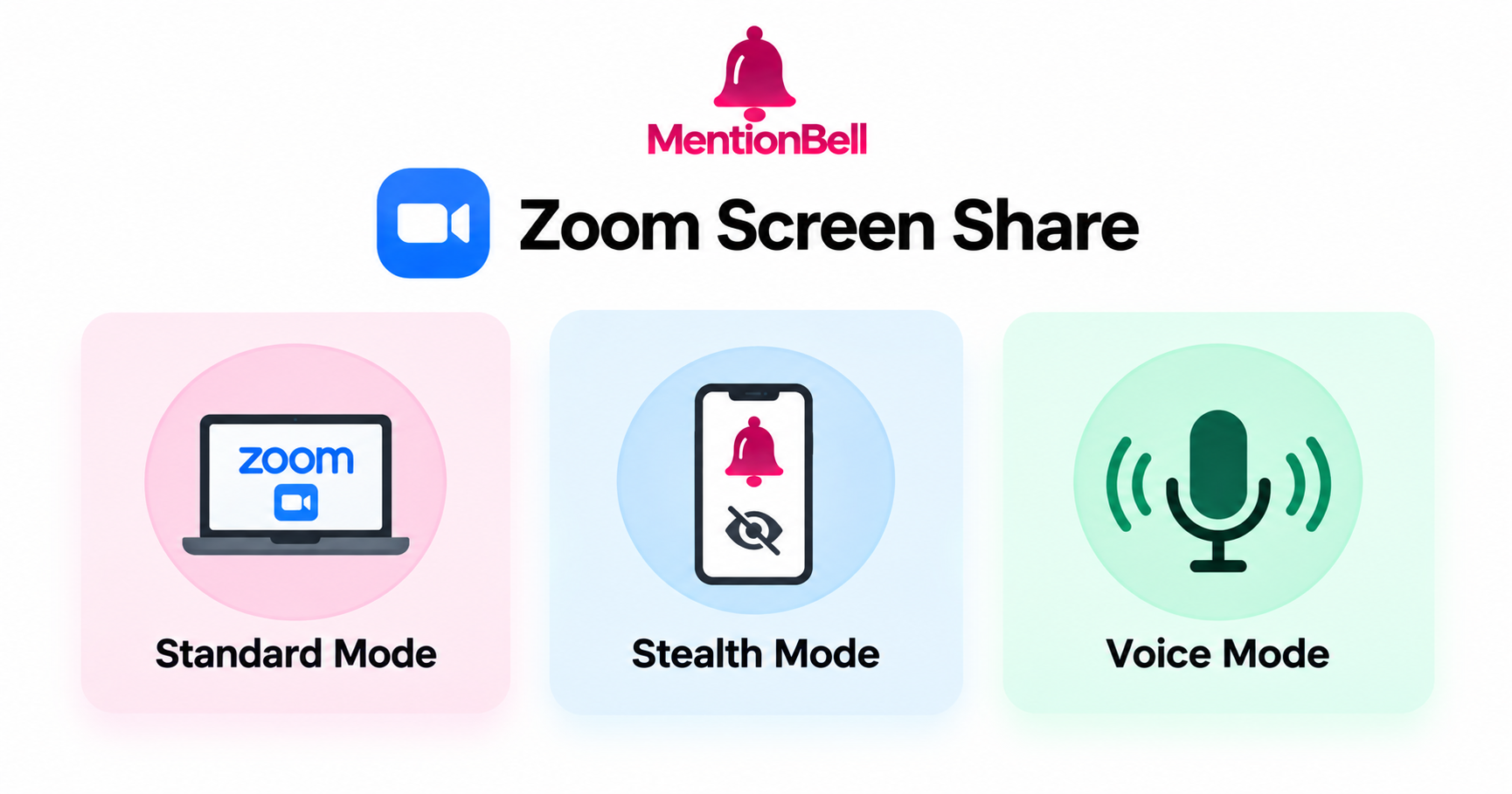
Zoom Screen Share: What Interviewers See vs What You See
Zoom is the most common interview platform worldwide. Screen sharing on Zoom is also the most common way candidates get caught using interview tools — usually because they do not understand what the share actually captures.
How Zoom Screen Sharing Works
When you share your screen on Zoom, the platform captures your display through the operating system's screen capture API and streams it to the interviewer. What appears depends on what you choose to share:
Entire screen — What is captured: Everything visible on the display. What is NOT captured: Apps excluded from OS capture API
Application window — What is captured: Only the selected app's window. What is NOT captured: Other windows, overlays on top
Portion of screen — What is captured: Selected rectangle. What is NOT captured: Everything outside the rectangle
Whiteboard — What is captured: Zoom's built-in whiteboard. What is NOT captured: Your desktop
The critical detail: apps excluded from the OS capture API do not appear in any share mode. This is an operating system feature, not a Zoom feature. MentionBell uses this exclusion in Standard mode.
What You See vs What the Interviewer Sees
Standard mode (capture-excluded overlay)
MentionBell overlay — You: Visible on your screen. Interviewer (during screen share): Not visible — excluded from capture
Your desktop — You: Normal. Interviewer (during screen share): Normal — same as without MentionBell
Dock / taskbar icon — You: Hidden by default. Interviewer (during screen share): Not visible
Answer text — You: Readable on your screen. Interviewer (during screen share): Not in the share stream
This is not hiding a window behind another window. Your computer literally excludes MentionBell from the capture pipeline.
Stealth mode (phone display)
Laptop screen — You: Clean desktop, no MentionBell. Interviewer: Clean desktop
Phone — You: Answers displayed. Interviewer: Not visible (unless in camera frame)
MentionBell window — You: Hidden (use your hide shortcut; default ⌘B / Ctrl+B, customizable in settings). Interviewer: Nothing
Voice mode (earpiece)
Screen — You: No answer text needed. Interviewer: Nothing unusual
Earpiece — You: Hearing the answer. Interviewer: Nothing visible
Eye contact — You: Natural forward gaze. Interviewer: Natural forward gaze
Common Zoom Screen Share Scenarios
"Share your coding environment"
The interviewer wants to see your IDE or browser with the coding problem. Share the specific application window — not your entire screen. MentionBell's overlay is not part of that window.
Mode: Standard mode. Share the coding app window only.
"Share your entire screen"
The interviewer wants to see everything — browser, terminal, notes. This is the highest-risk share type.
Mode: Stealth mode. Hide MentionBell window. Read answers on your phone. Consider Voice mode if the interviewer is attentive.
"I'll share my screen" (interviewer shares)
You are not sharing at all. The interviewer presents questions, problems, or slides.
Mode: Standard or Voice. No screen share risk on your end.
"Let's use the Zoom whiteboard"
Collaborative whiteboard within Zoom. No desktop sharing involved.
Mode: Standard mode. Whiteboard is a Zoom feature, not your screen.
Zoom Recording
If the interviewer records the Zoom call, the recording uses the same capture pipeline as live screen sharing. Capture-excluded apps do not appear in recordings either. Stealth mode adds a second layer — nothing on screen to exclude because answers are on your phone.
Practical Setup for Zoom Interviews
Before joining: Start MentionBell, choose mode based on whether screen share is likely
If Standard: Verify overlay is visible to you but test capture exclusion in a practice share
If Stealth: Connect phone via QR, hide laptop window, place phone naturally
If Voice: Test earpiece volume in a practice call
If asked to share: If not already in Stealth, switch now before clicking Share
What Gets People Caught on Zoom
These are the actual failure modes — not theoretical:
Browser tab with ChatGPT visible — captured in full screen share
Browser extension icon in the toolbar — visible in screen share
Looking at a phone obviously — interviewer sees eye direction on video
Reading answers verbatim — unnatural delivery pattern
Notification from another app — captured in full screen share
MentionBell addresses the first three directly. The last two are delivery skills — use Voice mode and speak in your own words.
Recap
Zoom captures your screen through the OS — excluded apps do not appear
Standard mode overlay is capture-excluded, not just hidden
Stealth mode removes everything from the laptop screen
Voice mode eliminates the need to look at any screen
Share specific windows when possible; use Stealth for full screen share
Try MentionBell — unlimited sessions on every plan. Download · See pricing
Related reading: