 MentionBell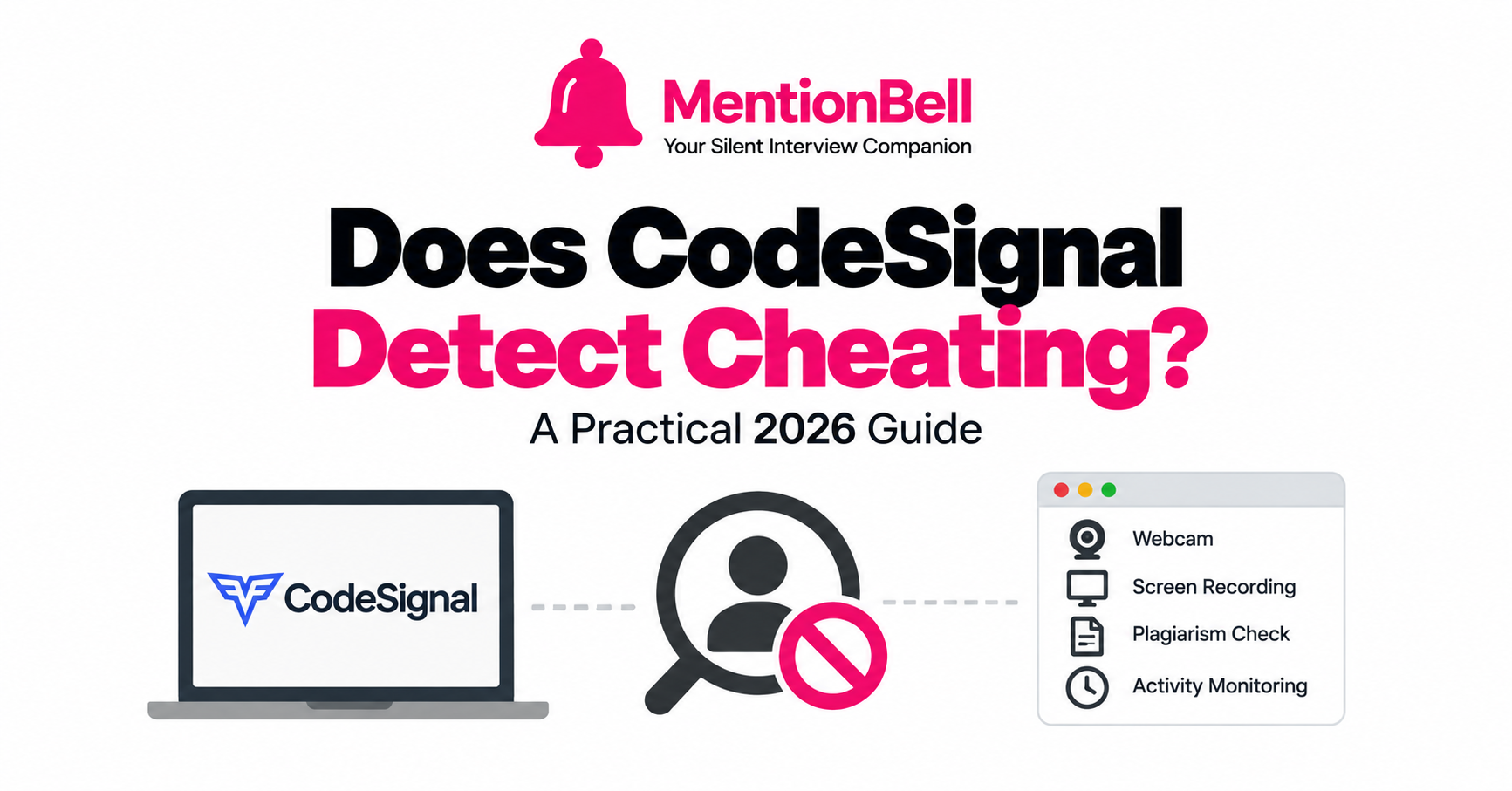
Does CodeSignal Detect Cheating? A Practical 2026 Guide
CodeSignal is widely used for technical assessments and live interviews, especially in enterprise hiring. Its integrity features have become more sophisticated over time, but like all browser-based proctoring, CodeSignal has clear boundaries in what it can observe.
CodeSignal's Integrity Features
CodeSignal offers several layers of monitoring depending on how the company configures the assessment:
Browser-level monitoring
Tab focus tracking — switching away from the CodeSignal tab is recorded
Copy-paste detection — clipboard events in the code editor are logged
Time-per-question analytics — unusually fast solves or long idle periods are flagged
Plagiarism detection — code similarity against a database of known solutions
Proctoring add-ons (when enabled by the employer)
Webcam monitoring with periodic snapshots
Screen recording during the assessment
ID verification at session start
AI-powered behavior analysis (gaze tracking, suspicious patterns)
Not every CodeSignal assessment uses all of these. A company's internal recruiter configures the level of monitoring per role.
What CodeSignal Cannot See
Browser-based integrity tools share the same architectural limits:
Desktop applications not running inside the browser
OS processes — Activity Monitor, Task Manager contents are not scanned
Apps excluded from screen capture — excluded windows do not appear in screen recordings
External devices — a phone receiving information via a separate channel
CodeSignal's proctoring operates within the browser sandbox. Tools that live entirely outside that sandbox are architecturally invisible to it.
Detection Risk by Tool Type
Browser extension — Detection risk: High. Scanned by extension detection; injects into page
Browser tab (AI chat) — Detection risk: High. Tab switch logged; visible in screen recording
Desktop overlay app — Detection risk: Low. Outside browser; capture-excluded if designed so
Phone as second device — Detection risk: Very low. No connection to CodeSignal session
Voice-only (earpiece) — Detection risk: Very low. No visual or browser signal
Preparing for a CodeSignal Assessment
Step 1: Determine the monitoring level
Ask your recruiter or check the assessment invitation:
Is proctoring enabled?
Is webcam required?
Is screen recording active?
Is it a timed OA or a live interview?
Step 2: Match your setup to the monitoring level
Low monitoring (live interview, no proctoring): Standard mode works if screen sharing is limited. Use Stealth if full desktop share is required.
Medium monitoring (OA with tab tracking, no webcam): Desktop app only. No browser extensions. Avoid tab switches.
High monitoring (webcam + screen recording + tab tracking): Stealth mode (answers on phone) + Voice mode (hear answers in earpiece). Nothing visible on the monitored screen.
Step 3: Practice with your setup
Run a CodeSignal practice assessment (many are publicly available) with your full MentionBell configuration. Confirm no flags before the real assessment.
CodeSignal Live Interviews vs OAs
The detection landscape differs significantly:
Proctoring — Automated OA: Usually enabled. Live interview: Often lighter or disabled
Screen sharing — Automated OA: N/A (your screen). Live interview: Interviewer may request it
Tab tracking — Automated OA: Active. Live interview: May not apply
Plagiarism check — Automated OA: Active on submission. Live interview: N/A
Primary risk — Automated OA: Browser tools, paste events. Live interview: Screen visibility
For live CodeSignal interviews, the bigger concern is often screen sharing rather than browser proctoring. Stealth mode addresses this directly.
MentionBell on CodeSignal
For coding questions displayed in the CodeSignal editor, MentionBell's screenshot shortcut captures the problem and returns approach, complexity, and working code. For verbal portions of a live interview, MentionBell listens and generates CV-grounded answers.
Recommended configuration:
Proctored OA: Stealth + Voice; desktop app only
Live interview: Standard mode if no screen share; Stealth if screen share required
Practice: Unlimited sessions on any plan — use them
Recap
CodeSignal monitors browser activity, clipboard, timing, and optionally webcam/screen
Desktop apps outside the browser are outside CodeSignal's monitoring scope
Detection risk depends on how the employer configures the assessment
Match your tool setup to the monitoring level — Stealth + Voice for high monitoring
Practice with your full setup before the real assessment
Try MentionBell — unlimited sessions on every plan. Download · See pricing
Related reading: