 MentionBell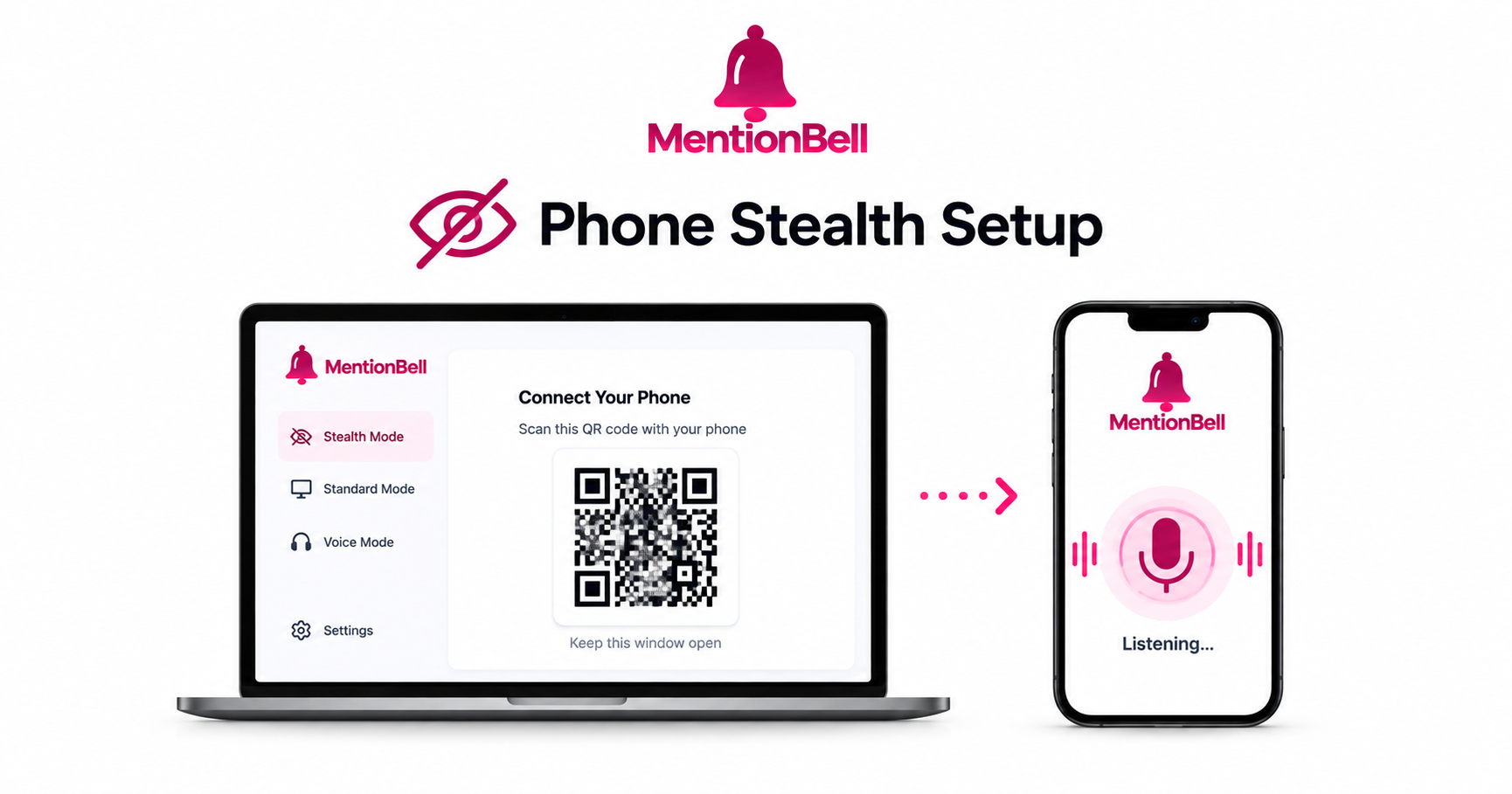
Phone Stealth Mode: QR Setup in 3 Minutes
Some interviews require you to share your entire desktop. In those rounds, even a capture-excluded overlay on your laptop is a risk you may not want to take. MentionBell Stealth mode solves this by moving answers to your phone — your interview machine shows nothing at all.
Setup takes about three minutes. Here is the full walkthrough.
What Stealth Mode Does
In Stealth mode, your laptop handles listening and answer generation. Your phone handles display only. The two devices sync through your MentionBell account — no cables required.
Today: Connect your phone through the browser at app.mentionbell.com (works on Android and iOS). No app install needed.
Coming soon: Native MentionBell apps for Android and iOS will make Stealth setup and mobile sessions even faster.
Laptop: listens to the interview, generates CV-grounded answers
Phone: displays answers as they arrive (read-only mirror)
Interview machine: shows a normal desktop with no trace of MentionBell
Step 1: Start a Session on Your Laptop
Open MentionBell on your Mac or Windows machine before the interview call begins.
Confirm your CV is uploaded and custom instructions are set
Select Stealth mode in session settings
Click Start Session
The app begins listening through your configured audio source (mic or system audio)
Do not join the interview call yet — get MentionBell running first so you are not fumbling with settings while the interviewer waits.
Step 2: Scan the QR Code
Once the session starts, MentionBell displays a QR code on your laptop screen.
Open your phone's browser (Safari on iOS, Chrome on Android)
Navigate to
app.mentionbell.com(or scan the QR code directly)Sign in with the same MentionBell account you use on your laptop
Tap Connect
Note: You do not need to install an app today — the browser works on both Android and iOS. Native mobile apps for Android and iOS are launching soon.
Your phone is now paired as the display device. Answers generated on the laptop will appear on your phone in real time.
Step 3: Hide the Laptop Window
After your phone shows "Connected":
Press your hide shortcut (default ⌘B on Mac, Ctrl+B on Windows — you can change this in MentionBell settings) to minimize the MentionBell window
Verify your phone is receiving the connection status
Place your phone at a natural reading angle — on the desk slightly below eye level works well
Join the interview call
From this point, every answer appears on your phone only. The laptop continues listening and generating in the background.
Audio Setup Tips
Stealth mode does not change how MentionBell hears the interview. Configure audio before you start:
Microphone mode (default): MentionBell hears the interviewer through your laptop speakers. Keep headphones off so the mic picks up their voice.
System audio mode (desktop): Captures the call audio directly. Headphones are fine in this mode.
Test both in a mock call before a real interview so you know which works with your setup.
What Your Phone Does and Does Not Do
Displays answers — Yes, read-only text mirror
Records audio — No
Sends data to the interview — No
Requires app install (today) — No, use browser at
app.mentionbell.comWorks on iOS and Android — Yes, via mobile browser
Native mobile app — Coming soon for Android and iOS
Troubleshooting
Phone not connecting:
Confirm you are signed into the same account on both devices
Refresh
app.mentionbell.comand tap Connect againCheck that your laptop session is still active (not paused)
Answers delayed on phone:
Ensure stable Wi-Fi on both devices
Laptop should be on power — battery saver can throttle background processing
Interviewer asks to share screen:
Hide the MentionBell window before sharing (use your hide shortcut — default ⌘B / Ctrl+B, customizable in settings)
Your phone continues receiving answers while the shared screen shows a clean desktop
When to Use Stealth vs Standard
Use Stealth when full desktop sharing is likely or required. Use Standard when you only share a browser tab or document — the overlay is already excluded from capture, and Standard is faster to set up.
You can switch from Standard to Stealth mid-session without losing your transcript or session history.
Recap
Start a Stealth session on your laptop
Scan the QR at
app.mentionbell.comand connect your phoneHide the laptop window and join the call
Read answers on your phone — nothing appears on the interview machine
Try MentionBell — unlimited sessions on every plan. Download · See pricing
Related reading: