 MentionBell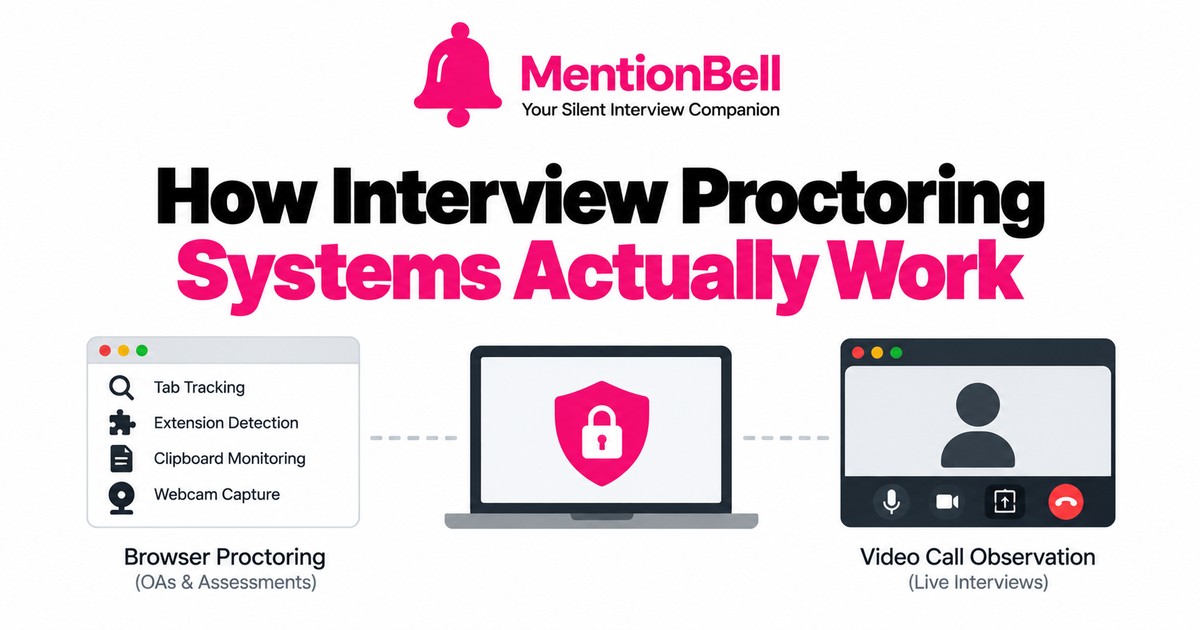
How Interview Proctoring Systems Actually Work
Interview proctoring has become standard for online assessments at major companies. Understanding how these systems work — not from marketing materials, but from their technical architecture — helps you make informed decisions about tools and setup.
The Two Types of Interview Monitoring
Not all interview monitoring is the same. There are two fundamentally different systems:
1. Browser-based proctoring (OAs and assessments)
Runs as JavaScript inside the browser tab. Monitors activity within the browser session. Used by HackerRank, CodeSignal, Codility, and similar platforms for automated online assessments.
2. Video-call observation (live interviews)
The interviewer watches you on camera, may request screen sharing, and observes your behavior directly. Used in Zoom, Teams, Meet, and Webex interviews — with or without a coding platform.
These are separate systems with separate detection capabilities. A tool that is invisible on Zoom may still be caught by HackerRank proctoring, and vice versa.
Browser Proctoring: Inside the Sandbox
Browser proctoring operates within the browser's security sandbox. It can monitor:
Tab focus —
visibilitychangeandblurevents. Example flag: "Left tab for 3 seconds"Extensions — DOM injection detection,
chrome.runtimescans. Example flag: "Unauthorized extension detected"Clipboard —
pasteevent listeners on editor. Example flag: "Pasted 47 lines of code"Webcam —
getUserMediastream with periodic frame capture. Example flag: "Candidate looked left repeatedly"Fullscreen — Fullscreen API state changes. Example flag: "Exited fullscreen mode"
Keystroke timing — Time between key events in editor. Example flag: "Unusually fast completion"
IP/device — Session metadata, browser fingerprint. Example flag: "Multiple IPs detected"
What browser proctoring cannot access
Processes running on the operating system (unless paired with a separate desktop agent — rare)
Windows excluded from the OS screen capture API
Content on external devices (phones, tablets)
Audio played through earpieces (unless microphone picks it up)
Desktop applications that do not inject into the browser DOM
The sandbox is the boundary. Browser JavaScript cannot cross it.
Video-Call Observation: What the Interviewer Sees
In live interviews, the monitoring is human (supplemented by recording):
Screen share — Interviewer sees your shared display
Eye movement — Interviewer watches where you look
Response timing — Interviewer notices unnatural pauses or instant answers
Body language — Fidgeting, reading motions, earpiece visible
Follow-up depth — Interviewer probes whether you understand your own answers
Recording — Session may be recorded for later review
What video-call observation cannot see
Capture-excluded windows (excluded from the OS share API)
Phone screens not in the camera frame
Audio in your earpiece at low volume
Desktop apps with no visible taskbar/dock icon
Desktop Agents: The Exception
Some enterprise proctoring solutions install a desktop application alongside the browser session. These can monitor:
Running processes
All open windows
System-level clipboard
Connected USB devices
Desktop-agent proctoring is uncommon for standard tech interviews but appears in some financial services and government hiring. If your assessment requires installing software beyond the browser, assume desktop-level monitoring.
Architecture Diagram: Where Tools Live
┌─────────────────────────────────────────────┐
│  Operating System                            │
│  ┌──────────────┐  ┌──────────────────────┐ │
│  │ Desktop App  │  │ Browser              │ │
│  │ (MentionBell)│  │ ┌──────────────────┐ │ │
│  │              │  │ │ Proctoring JS    │ │ │
│  │ Outside      │  │ │ - tab tracking   │ │ │
│  │ browser      │  │ │ - extensions     │ │ │
│  │ sandbox      │  │ │ - clipboard      │ │ │
│  │              │  │ │ - webcam        │ │ │
│  └──────────────┘  │ └──────────────────┘ │ │
│                     └──────────────────────┘ │
│  ┌──────────────┐                            │
│  │ Phone        │  ← Stealth mode display   │
│  │ (separate)   │                            │
│  └──────────────┘                            │
└─────────────────────────────────────────────┘
Practical Implications
For proctored OAs
Do not use browser extensions or AI chat tabs
Desktop apps outside the browser are architecturally separate
Avoid tab switches, paste events, and fullscreen exits
Test your setup on a practice assessment first
For live video interviews
Screen share is the primary risk — use Stealth mode
Maintain natural response timing — do not answer complex questions in under 3 seconds
CV-grounded answers help with follow-ups because they reference real experience
Voice mode reduces visible eye movement toward a screen
For combined scenarios (OA + live rounds)
You may face both browser proctoring and video observation in the same hiring loop. Plan per round:
Proctored OA — Monitoring: Browser JS. MentionBell mode: Stealth + Voice; desktop only
Live coding (CoderPad) — Monitoring: Video + maybe screen share. MentionBell mode: Stealth if sharing; Standard if not
Behavioral (Zoom) — Monitoring: Video only. MentionBell mode: Standard or Voice
System design (shared doc) — Monitoring: Video, limited screen share. MentionBell mode: Standard mode
Recap
Browser proctoring monitors within the browser sandbox — tabs, extensions, clipboard, webcam
Video-call observation relies on what the interviewer sees and hears
Desktop apps and external devices operate outside browser proctoring scope
Desktop-agent proctoring (rare) can monitor OS-level activity
Match your MentionBell mode to the monitoring type in each round
Try MentionBell — unlimited sessions on every plan. Download · See pricing
Related reading: