 MentionBell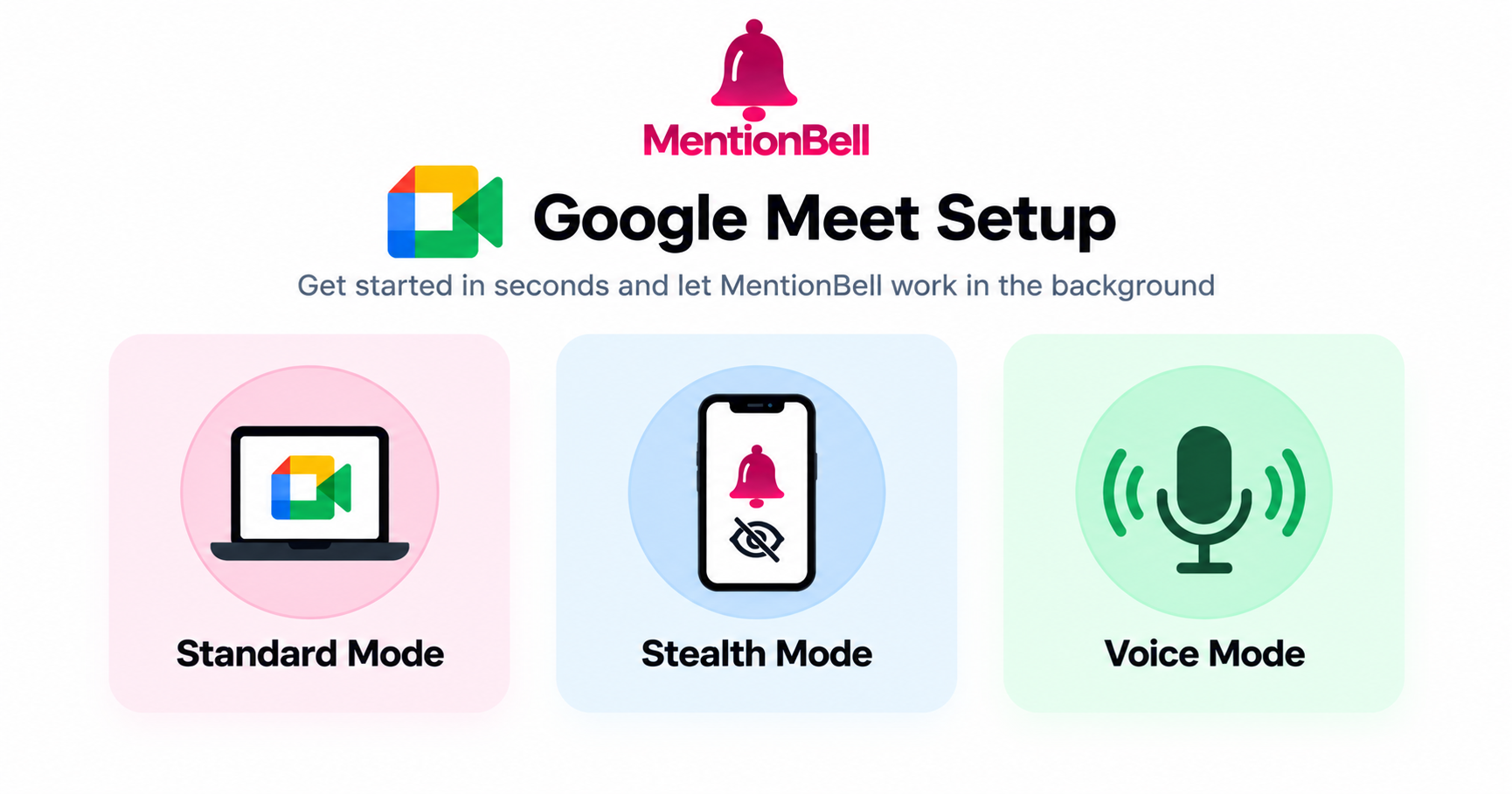
Google Meet Interview Setup: Mic vs Tab Audio
Google Meet is the interview platform of choice for Google itself and many startups. Getting MentionBell's audio configuration right on Meet is the difference between catching every question and missing half of them.
The Audio Problem on Meet
MentionBell needs to hear the interviewer's questions to generate answers. On Google Meet, the interviewer's voice reaches MentionBell through one of two paths:
Path 1: Microphone mode
Your laptop microphone picks up the interviewer's voice from your speakers.
Works when:
You use laptop speakers (no headphones)
The room is quiet
Meet volume is high enough for the mic to capture
Fails when:
You wear headphones — the mic cannot hear the interviewer
Background noise drowns out speaker audio
Meet routes audio to a Bluetooth device the mic does not pick up
Path 2: System audio mode (desktop)
MentionBell captures the audio output directly from your operating system, before it reaches speakers or headphones.
Works when:
You use headphones (audio captured digitally, not through mic)
You have a noisy environment
Meet audio routes through any output device
Requires:
MentionBell desktop app (macOS or Windows)
System audio permission granted in OS settings
Recommendation: System audio mode is more reliable for Meet interviews. Enable it in MentionBell settings and grant the necessary OS permissions before your call.
Meet Screen Sharing Behavior
Google Meet screen sharing works similarly to other platforms:
Entire screen — Interviewer sees: Full desktop. MentionBell visibility: Standard overlay visible unless capture-excluded
A window (Chrome tab) — Interviewer sees: Only that window. MentionBell visibility: Overlay not in shared window
A Chrome tab — Interviewer sees: Only that tab. MentionBell visibility: Overlay not in shared tab
MentionBell's Standard mode overlay is excluded from OS screen capture. On Meet, this means the overlay does not appear when the interviewer shares or records your screen — but only if you are using the desktop app with capture exclusion, not a browser-based tool.
If you are asked to share your entire screen, Stealth mode is the safer choice regardless.
Setup Checklist for Meet Interviews
Before the call
Upload CV and set custom instructions in MentionBell
Enable system audio mode in MentionBell settings
Grant screen recording / audio capture permissions (macOS) or loopback permissions (Windows)
Join a test Meet call and verify MentionBell detects your voice and playback audio
Choose mode: Standard (no screen share) or Stealth (screen share expected)
During the call
Start MentionBell session before joining Meet
Join Meet from Chrome or the Meet app
Confirm the interviewer can hear and see you
Let MentionBell detect questions — answers appear in 1–2 seconds
Use screenshot shortcut for any coding problems shared in Meet chat or screen
Meet-Specific Tips
Joining from Chrome vs the Meet app
Both work. Chrome is more common for interviews because it allows easy tab sharing. MentionBell runs as a desktop app alongside either.
Meet's noise cancellation
Meet applies noise cancellation to your microphone input. This does not affect MentionBell's audio capture in system audio mode — MentionBell captures the raw output, not the mic input.
Captions
Meet's live captions are visible to you only. They do not interfere with MentionBell and can serve as a backup way to read the question if audio detection misses something.
Recording
If the interviewer records the Meet call, MentionBell is excluded from the recording in Standard mode. In Stealth mode, nothing appears on screen at all.
Mode Selection for Meet
Standard behavioral interview — Standard or Voice
Technical discussion, no sharing — Standard
"Can you share your screen?" — Stealth (set up before sharing)
Coding problem in shared tab — Standard + screenshot shortcut
Panel interview — Voice mode
Recap
System audio mode is the most reliable way for MentionBell to hear Meet calls
Headphones work with system audio; they break mic mode
Standard mode overlay is capture-excluded on Meet
Use Stealth mode when screen sharing is required
Test your audio setup in a practice Meet call before the real interview
Try MentionBell — unlimited sessions on every plan. Download · See pricing
Related reading: